| Index | Recent Threads | Unanswered Threads | Who's Active | Guidelines | Search |
 |
World Community Grid Forums

 Category: Support

 Forum: Website Support
 Thread: Device Profiles
 |
| No member browsing this thread |
|
Thread Status: Active Total posts in this thread: 59
|

|
| Author |
|


|
Former Member
Cruncher Joined: May 22, 2018 Post Count: 0 Status: Offline |
I think I've found something, but needs someone verify it:
----------------------------------------If you: 1. Go to any one of the Device Configuration pages, save the page locally, and edit save the file (see ZoSo's last post). 2. Go to any one of the Device Configuration pages EXCEPT the one in Step 1. 3. Open the local file edited and saved in Step 1 (Note: not sure if it has to be opened within the same window/tab/session), choose a "customized" profile and save. 4. Result: it seems that it changes the config for the device mentioned in Step 2 instead of the one in Step 1 (no need to change the device ID and name in that local file). If this really works, then we just need one local file to modify all of the devices  [Edit 2 times, last edit by Former Member at Jun 8, 2009 5:52:15 AM] |
||
|


|
knreed
Former World Community Grid Tech Joined: Nov 8, 2004 Post Count: 4504 Status: Offline Project Badges: 


|
When we originally developed the code for BOINC profiles, we wrote it in a mostly generic way that would allow for arbitrary profile names (it was actually easier that way given the way the interface had been set up for UD). There has also always been discussion about changing things to allow arbitrary profiles with BOINC. As a result, we didn't do anything to prevent profile names for other than the standard ones for BOINC.
Having said that, BOINC has never implemented arbitrary profile names so this never progressed. We have no intention to limit this feature (and we will schedule a change to pull the drop down lists from the existing set of named profiles). However, we have not tested this, nor do we know how this will work if you participate in other BOINC projects (might work fine but it might break the profile web pages for other projects). This is something that you can use at your own risk. |
||
|
|
Sekerob
Ace Cruncher Joined: Jul 24, 2005 Post Count: 20043 Status: Offline |
Okay, great, have bolted on a draft paragraph to the existing Profiles FAQ, with link to Moonian's step by step found in post below (Credit given).
----------------------------------------http://www.worldcommunitygrid.org/forums/wcg/printpost?post=135867 It's not a secret, but not going to advertise it either until it proofs ruggid and not causing upset in the Mondo BOINC :D
WCG
----------------------------------------Please help to make the Forums an enjoyable experience for All! [Edit 1 times, last edit by Sekerob at Jun 9, 2009 7:50:37 AM] |
||
|
|
Former Member
Cruncher Joined: May 22, 2018 Post Count: 0 Status: Offline |
You've peaked my curiosity to the extreme. I've only ever been able to make device profiles named school, home and work in addition to default. What's the names you gave the additional 7? I didn't get too radical - have a pique at this: 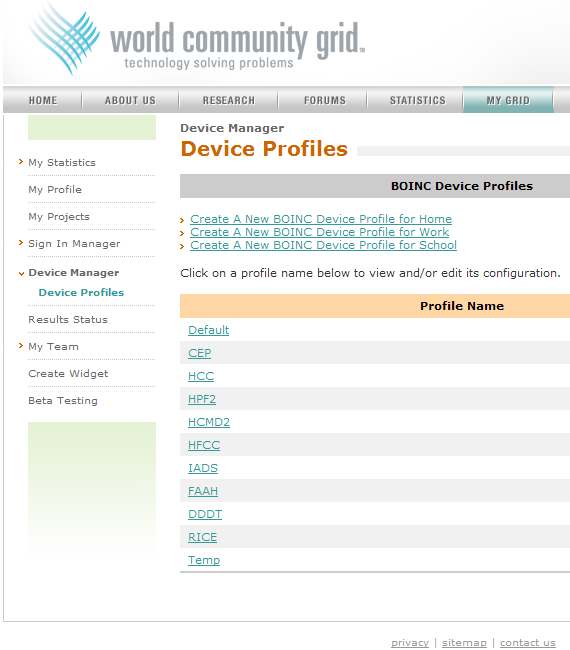 And I know the website is aware of them, because if I use My Grid -> My Projects to change the projects, it alters all of those profiles to what I selected on that page (I discovered that before I deleted the Home, Work and School profiles I made first, btw). But it doesn't show them in the picklist. e.g. 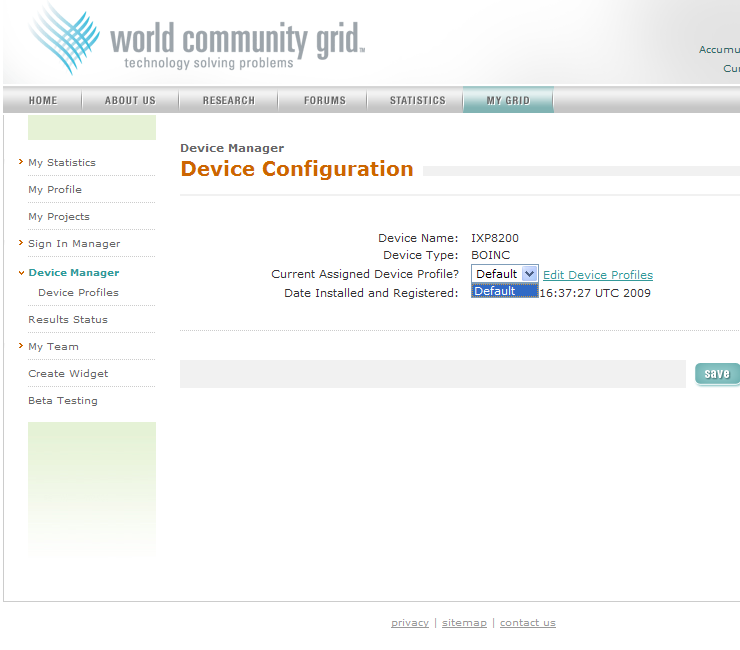 I am lost on all of this. I need a step by step explanation on how to do this. [Edit 1 times, last edit by Former Member at Jun 8, 2009 10:08:07 PM] |
||
|
|
Former Member
Cruncher Joined: May 22, 2018 Post Count: 0 Status: Offline |
OK, here you are:
----------------------------------------Step 1: Create a customized profile 1.1 The URL of the page configuring a profile is something like this: where YOUR_PROFILE_NAME is a profile name of your own choice. 1.2 Open the page using the above URL, config the settings as if it is a normal profile, and then click  . .http://imageshack.us/photo/my-images/10/54106074.png/ 1.3 If successful, the new profile should list under "Profile Name" of the Device Manager-->Device Profiles page. http://imageshack.us/photo/my-images/406/45652452.png/ ============================================= Step 2: Apply the customized profile to a device 2.1 In the Device Manager page, click the link of the device you would like to use the customized profile you have just created. This should open a Device Configuration page. 2.2 Save that Device Configuration as an HTML file to your local machine. 2.3 Open it with a text editor (e.g. Notepad). 2.4 In the file, there should be a section that looks something like this (in IE7): <SELECT name=venue><OPTION selected value=Default>Default</OPTION> or this (in IE8 and Firefox): <select name="venue"><option value="Default" selected="selected">Default</option> This is dropdown box containing the profile names. 2.5 Add the option for the customized profile you have created in Step 1. The block of code should become something like this (in IE7): <SELECT name=venue><OPTION selected value=Default>Default</OPTION> or this (in IE8 and Firefox): <select name="venue"><option value="Default" selected="selected">Default</option> where YOUR_PROFILE_NAME is the profile name you have created in Step 1. 2.6 Somewhere above the block of code mentioned in 2.4-2.5, there should be a section that looks something like this (in IE7): <FORM method=post name=deviceConfigurationBean or this (in IE8 and Firefox): <form name="deviceConfigurationBean" method="post" This is for the link for the button in the page.2.7 Add the string http://www.worldcommunitygrid.org just after action= (in IE7) or action=" (in IE8 and Firefox) so that it becomes (in IE7): <FORM method=post name=deviceConfigurationBean or (in IE8 and Firefox): <form name="deviceConfigurationBean" method="post" 2.8 Save the file and exit the editor. 2.9 Open the file with your favourite browser. (Note: as scripts run in a local file, your browser may block them from running. Allow them to run temporarily if they are blocked.) 2.10 The dropdown box in the page should contain the customized profile you have created in Step 1. Choose it and click .http://imageshack.us/photo/my-images/407/210zi.png/ 2.11 Go to the Device Manager page and see if the device's profile has been changed to your customized one. http://imageshack.us/photo/my-images/215/211c.png/ You may also click the Update button of the BOINC Manager for the said device to check if it changes to use the customized profile. Edit: Added Firefox code Edit 2: Added some screenshots too Edit 3: Fixed something [Edit 9 times, last edit by TKH at Apr 24, 2012 2:02:05 PM] |
||
|
|
Former Member
Cruncher Joined: May 22, 2018 Post Count: 0 Status: Offline |
OK, here you are: Step 1: Create a customized profile 1.1 The URL of the page configuring a profile is something like this: where YOUR_PROFILE_NAME is a profile name of your own choice. 1.2 Open the page using the above URL, config the settings as if it is a normal profile, and then click .1.3 If successful, the new profile should list under "Profile Name" of the Device Manager-->Device Profiles page. Step 2: Apply the customized profile to a device 2.1 In the Device Manager page, click the link of the device you would like to use the customized profile you have just created. This should open a Device Configuration page. 2.2 Save that Device Configuration as an HTML file to your local machine. 2.3 Open it with a text editor (e.g. Notepad). 2.4 In the file, there should be a section that looks something like this: <SELECT name=venue><OPTION selected This is dropdown box containing the profile names. 2.5 Add the option for the customized profile you have created in Step 1. The block of code should become something like this: <SELECT name=venue><OPTION selected where YOUR_PROFILE_NAME is the profile name you have created in Step 1. 2.6 Somewhere above the block of code mentioned in 2.4-2.5, there should be a section that looks something like this: <FORM method=post name=deviceConfigurationBean This is for the link for the button in the page.2.7 Add the string http://www.worldcommunitygrid.org just after action= so that it becomes: <FORM method=post name=deviceConfigurationBean 2.8 Save the file and exit the editor. 2.9 Open the file with your favourite browser. (Note: as scripts are run in a local file, your browser may block them from running. Allow them to run temporarily if they are blocked.) 2.10 The dropdown box in the page should contain the customized profile you have created in Step 1. Choose it and click .2.11 Go to the Device Manager page and see if the device's profile has been changed to your customized one. You may also click the Update button of the BOINC Manager for the said device to check if it changes to use the customized profile. Awesome step by step explanation.  The text in the text editor notepad was slightly different than your examples, but I figured it out. For example, here is what part of mine looked like (laptop is the new profile I created) <select name="venue"><option value="Default" selected="selected">Default</option> <option value="laptop">laptop</option></select> <option value="home">home</option></select> anyhow, it worked. Much thanks to you for helping me out. |
||
|
|
Former Member
Cruncher Joined: May 22, 2018 Post Count: 0 Status: Offline |
You're welcome downtowndan
As for the slight difference in the code... I'm not sure if it's something related to the choice of browser  (I used IE8 to save the page) (I used IE8 to save the page) |
||
|
|
Sekerob
Ace Cruncher Joined: Jul 24, 2005 Post Count: 20043 Status: Offline |
Moonian, as noted I've linked your Step-by-Step to the FAQ's. If you polish your original up a bit [use edit] and add e.g. the varying browser code differential observation, I'll copy it verbatim to the FAQ's.
----------------------------------------Anyone having upsets who do also simultaneous project work outside WCG? cheers
WCG
Please help to make the Forums an enjoyable experience for All! |
||
|

|
Former Member
Cruncher Joined: May 22, 2018 Post Count: 0 Status: Offline |
Moonian, as noted I've linked your Step-by-Step to the FAQ's. If you polish your original up a bit [use edit] and add e.g. the varying browser code differential observation, I'll copy it verbatim to the FAQ's. Anyone having upsets who do also simultaneous project work outside WCG? cheers Thanks Sekerob . I've added the code for Firefox (don't have browsers with other engines though, so dunno what the code looks like in them) and highlight stuffs need to be added to the file (edit: just added some screenshots too). Please drop me a note if there's anything else I've missed :)[Edit 1 times, last edit by Former Member at Jun 9, 2009 12:07:42 PM] |
||
|
|
Former Member
Cruncher Joined: May 22, 2018 Post Count: 0 Status: Offline |
Thanks Sekerob . I've added the code for Firefox (don't have browsers with other engines though, so dunno what the code looks like in them) and highlight stuffs need to be added to the file (edit: just added some screenshots too). Please drop me a note if there's anything else I've missed :)I thought about giving you the download link for Safari, but then remembered after it cycles through the login/security redirects 3 times it gives up and says too many. |
||
|
|
|